A Group lets you work with your friends, family or colleagues on a common goal: You can send messages to the group, share files, and schedule events on a group calendar. You can add members when you first create a group or add them later.
Watch a short video about creating a group to be used as a company email address.
Note
The steps in this video are for new Outlook with a work or school account and Outlook on the web.
Not sure what kind of group you have? Learn more about Microsoft 365 Groups.
Looking for information on contact lists? Check out Create, edit, or delete a contact list (or contact group) in Outlook.
Create a Group in new Outlook
Open new Outlook.
There are two ways to find your groups:
- Select Groups
 in the App bar located on the side of the window.
- In the mailbox folder list, select Go to Groups
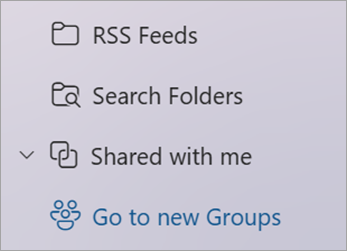
Select New Group on the ribbon and in the drop down select New Group.
Enter the Name and Description, then select Create.
Add members to a group in new Outlook
You'll be prompted to add members when you first create a group, but you can also add them later.
When you've entered the names or email addresses of everyone you want to add, select Add. If you're not ready to add people to your group, select Not now.
Create a Microsoft 365 Group in classic Outlook
Note
These features are only available to individuals using a work or school account with a qualifying Microsoft 365 subscription.
Open classic Outlook.
There are two ways to find your groups:
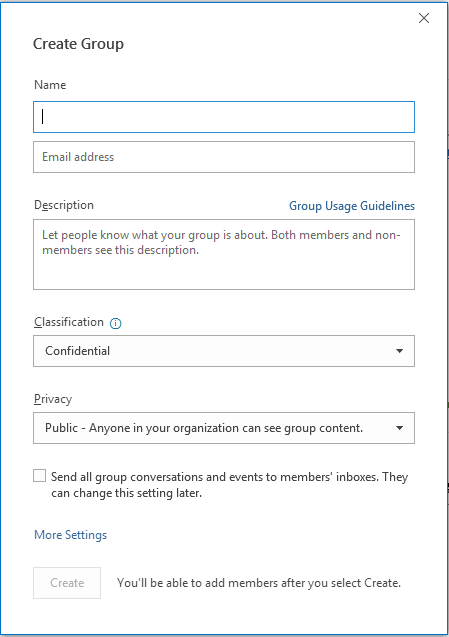
Group name: Create a name that captures the spirit of the group.
Once you enter a name, a suggested email address is provided. "Not available" means the group name is already in use and you should try a different name. Note that once you choose a group name, it cannot be changed.
Description: Optionally, enter a description that will help others understand the group's purpose. This description will be included in the welcome email when others join the group.
Classification: Choose a classification. Options available depend on what your organization has set up.
Privacy: By default, Groups are created as Private. This means only approved members in your organization can view what's inside the group. Anyone else in your organization who is not approved cannot view what's in the group.
Select Public to create a group where anyone within your organization can view its content and become a member.
Select Private to create a group where membership requires approval and only members can view group content.
Send all group conversations and events to members' inboxes Optionally, check this box to enable members to access all group conversations and events in their inbox without having to visit separate group workspaces. Members can change this setting for their own mailboxes.
Select Create.
Add members to a group in classic Outlook
You'll be prompted to add members when you first create a group, but you can also add them later.
When you've entered the names or email addresses of everyone you want to add, select Add. If you're not ready to add people to your group, select Not now.
Note
 Don't have New Group in your ribbon? Either your account isn't associated with a Microsoft 365 subscription, or your IT department might not have enabled Microsoft 365 Groups for your organization. Contact them for assistance.
Create a Microsoft 365 Group in Outlook on the web
Note
These features are only available to individuals using a work or school account with a qualifying Microsoft 365 subscription.
Sign into Outlook on the web.
Select Groups
in the App bar located in the left of the window.
Select 'New Group' on the ribbon and in the drop down select New Group.
Enter the Name, Email address of the group, Description, and set the Privacy settings, and then select Create.
Tip
When creating a group you'll need to decide if you want it to be a private group or a public group. Content in a public group can be viewed by anybody in your organization, and anybody in your organization can join the group. Content in a private group must be viewed by the members of the group and people who want to join a private group have to be approved by a group owner.
You'll be prompted to add members when you first create a group, but you can also add them later. When you've entered the names or email addresses of everyone you want to add, select Add. If you're not ready to add people to your group, select Not now.
Note
If you don't have Groups in the left ribbon, your organization may not have turned on Groups.
Create a group in Outlook.com
- Sign into Outlook.com.
- Select Groups
in the App bar located on the side of the window.
- Select New Group on the ribbon and in the drop down select New Group.
- Enter the Name and Description, then select Create.
- You'll be prompted to add members when you first create a group, but you can also add them later. When you've entered the names or email addresses of everyone you want to add, select Add. If you're not ready to add people to your group, select Not now.
Still need help?

|
To get support in Outlook.com, tap or click here or select Help on the menu bar and enter your query. If the self-help doesn't solve your problem, scroll down to Still need help? and select Yes.
If the above steps don't work or if you can't sign in, tap or click here. |

|
For other help with your Microsoft account and subscriptions, visit Account & Billing Help. |

|
To get help and troubleshoot other Microsoft products and services, enter your problem here. |

|
Post questions, follow discussions and share your knowledge in the Outlook.com Community. |
Related articles
Create a group in Outlook for Mac
The new Microsoft 365 Groups experience in Outlook
Add, edit, or remove Group members in Outlook
Adding guests to Microsoft 365 Groups
Join, leave, or follow Groups in Outlook
Send an email to a Group in Outlook
Schedule an event on a Group calendar in Outlook
Use shared files with your Microsoft 365 Group in Outlook
Edit or delete a Group in Outlook
Use Microsoft 365 Groups as a guest
Guests doesn't receive Microsoft 365 Group emails


