
You can customize Student AI Guidelines to match your school or classroom AI policy. Edit the title and description for each level, set a default guideline and AI agent for new assignments, or reset the guidelines to their original text.
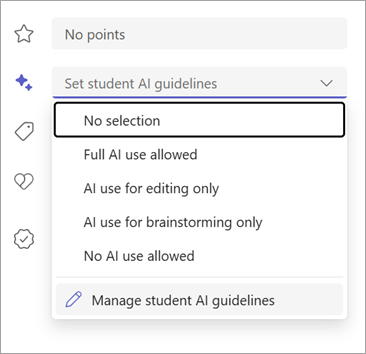
Open the Manage AI guidelines screen
- In your class team, select Assignments.
- Select New assignment (or edit an existing assignment).
- On the right side, select the Set AI guidelines dropdown.
- At the bottom of the dropdown, select Manage AI guidelines.
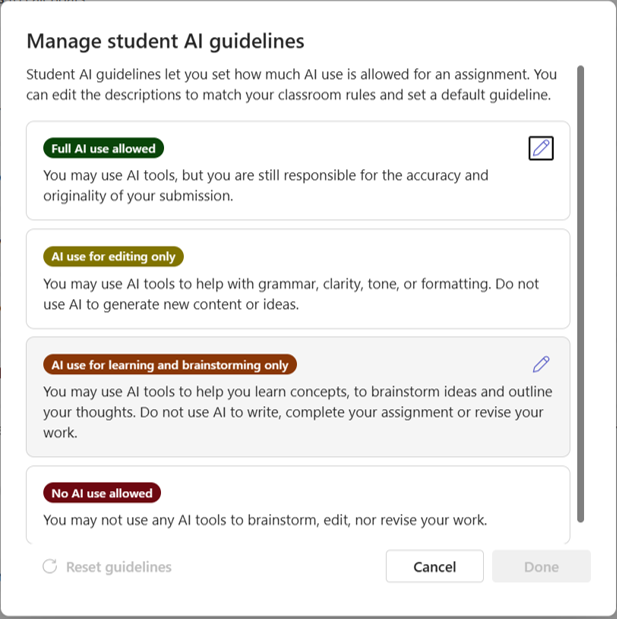
A dialog opens showing all four guideline levels with their current titles and descriptions.
Edit a guideline level
- On the Manage AI guidelines screen, select the guideline you want to change.
- An Edit details panel appears with fields for:
- Title — The name of the guideline level (for example, "Full AI use allowed"). You can also change the color indicator.
- Description — The text students see when this guideline is applied to an assignment.
- Update the title or description to match your school AI policy.
- Select the checkmark to confirm your edits.
- Select Done to save all changes.
Tip
Customize descriptions to reference your school specific AI use policy. For example, change "You may use AI tools" to "You may use approved AI tools listed in our school handbook."
Set a default guideline
If you use the same guideline level for most assignments, set it as the default so it is automatically selected each time you create a new assignment.
- Open Manage AI guidelines.
- Select the guideline level you want to edit.
- In the Edit details pane, check the Set as default box.
- Select the checkmark, and then select Done.
New assignments now start with this guideline preselected. You can still change it for individual assignments.
Set a default agent
When an educator selects an AI-allowed guideline on a standard assignment, they must choose the AI assistance students can open. You can set a class default so educators don't have to make the same selection for each new assignment.
- Open Manage AI guidelines.
- In the AI Assistance section, select the default agent:
- Study and Learn - Guides students through scaffolded questions and learning activities by using the assignment title, instructions, and supported resources.
- Copilot - Opens general-purpose Copilot Chat and lets the educator provide an optional starter prompt for the assignment.
- Select Done to save your changes.
Study and Learn is the default unless your class is configured to use Copilot. There's no separate None agent option. No AI use is the option for assignments where students shouldn't open an AI agent. The class default applies to new standard assignments that use an AI-allowed guideline. Educators can choose a different agent for an individual assignment.
Note
Educators can add a starter prompt when they select Copilot for an assignment. Study and Learn uses a learning-focused prompt provided by Microsoft and doesn't accept an educator-created starter prompt in this release.
Reset guidelines to original text
If you made edits and want to go back to the original titles and descriptions:
- Open Manage AI guidelines.
- Select Reset guidelines at the bottom left of the dialog.
- Select Done.
This action restores all four guideline levels to their default text. It removes any custom titles or descriptions.
The four default guideline levels
| Level | Default description |
|---|---|
| Full AI use allowed | You may use AI tools, but you're still responsible for the accuracy and originality of your submission. |
| AI use for editing only | You may use AI tools to help with grammar, clarity, tone, or formatting. Don't use AI to generate new content or ideas. |
| AI use for brainstorming only | You may use AI tools to help you brainstorm ideas and outline your thoughts. Don't use AI to write or revise your work. |
| No AI use allowed | You must complete this assignment entirely on your own. Don't use any AI tools at any stage of the process. |
Things to keep in mind
- Customizations apply to your class. Each class team has its own set of guideline titles and descriptions.
- Default guideline and agent changes apply to new assignments. Assignments you've already published keep the guideline text and agent selection they had when you assigned them.
- Any educator in the class team can manage guidelines.
- Student AI guideline and default agent settings are included when you import or export class settings.
- AI assistance is available for standard assignments with Full AI use allowed, AI use for editing only, or AI use for learning and brainstorming only. It isn't available for No AI use, quiz assignments, or Learning Accelerator assignments.