
Use the Home Plan template in Visio Professional and Visio Plan 2 to draw new house plans or remodeling plans, experiment with new kitchen and furniture arrangements, or draw plans to add a new room to your home.
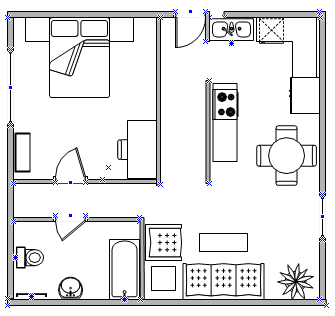
Create a home plan
On the File tab, select New, and then select Home Plan.
Choose Metric Units or US Units, and then select Create.
By default, this template opens a scaled drawing page in landscape orientation . You can change these settings at any time. For more information, see Change the drawing scale.
Create the basic exterior wall structure in one of the following ways:
Use room shapes.
- From the Walls, Shell and Structure stencil, drag one of the room shapes onto the drawing page.
- Resize the room shape by dragging the control handles
 and selection handles
 on individual walls.
Use wall shapes.
From the Walls, Shell and Structure stencil, drag exterior wall shapes onto the drawing page.
Resize walls by dragging an endpoint (
 or
or
 ).
).To connect walls, drag an endpoint (
or
) of one wall to another wall.
The endpoints turn red when the walls are glued. Intersections between two walls are cleaned up automatically.Note
For walls to join properly, Glue to Shape geometry must be selected in the Snap & Glue dialog box.
Create the interior wall structure.
Drag wall shapes onto the drawing page, positioning them inside the exterior structure.
Resize walls by dragging an endpoint (
or
).To connect walls, drag an endpoint (
or
) of one wall to another wall.
The endpoints turn red when the walls are glued. Intersections between two walls are cleaned up automatically.Note
For walls to join properly, Glue to Shape geometry must be selected in the Snap & Glue dialog box.
Add other structural elements.
- From the Walls, Shell and Structure stencil, drag structural shapes, such as columns, onto the drawing page.
- From the Building Core stencil, drag building core shapes, such as stairs, onto the drawing page.
Add doors and windows.
- From the Walls, Shell and Structure stencil, drag door and window shapes on top of walls.
Doors and windows automatically rotate to align with the wall and glue to the wall. They also acquire the wall's thickness and move with walls when you reposition them.
- From the Walls, Shell and Structure stencil, drag door and window shapes on top of walls.
After you assemble the building shell and wall structure, you can add electrical symbols and dimension lines.
Add electrical symbols.- From the Electrical and Telecom stencil, drag wall switches, outlets, and other wall fixtures onto wall shapes.
- Release the mouse button when a red square
 appears, indicating that the symbol is glued to the wall. Wall fixtures automatically rotate to align with the wall and glue to the wall.
You can also drag ceiling fixture shapes, such as the Ceiling fan, onto the drawing page.
Add dimension lines to walls.
Right-click a wall, and then select Add a Dimension.
Reposition dimension lines and dimension text by dragging a control handle
.Note
To see a tip about a control handle for a selected shape, pause the pointer over the handle.
If you add a dimension to a wall, you can resize the wall by selecting the dimension shape, typing the dimension that you want, and then selecting an empty area of the drawing page.
Insert a CAD home plan
Before you begin, confirm that the drawing is a supported .dwg or .dxf file. Visio Plan 2 supports files created with AutoCAD 2017 or earlier. Visio Standard and Visio Professional support files created with AutoCAD 2007 or earlier
- On the File tab, select New, and then select Home Plan.
- Choose Metric Units or US Units, and then select Create.
By default, this template opens a scaled drawing page in landscape orientation
. You can change these settings at any time. For more information see Change the drawing scale. - On the Insert tab, select CAD Drawing.
- Locate the .dwg or .dxf file, and then select Open.
- In the CAD Drawing Properties dialog, verify the drawing scale and preview. If you want to work at the same scale as the original drawing, set the CAD drawing scale to match its AutoCAD viewport scale.
- If necessary, select the Layer tab and configure the layers to import and the select OK.
After importing the drawing, you can change its scale or layer properties. Imported AutoCAD drawings are locked against moving, resizing, and deletion by default. Unlock the drawing before moving or resizing it.
Copy an existing Visio home plan into a new drawing
On the File tab, select New, and then select Home Plan.
Choose Metric Units or US Units, and then select Create.
By default, this template opens a scaled drawing page in landscape orientation
. You can change these settings at any time. For more information see Change the drawing scale.Open an existing Visio drawing.
On the Design tab, select Page Setup, and then select the Drawing Scale tab. Make note of the scale setting in the existing drawing, and then set the scale of your new drawing to match.
In the existing drawing, select the shapes you want to use in the new drawing and then, on the Home tab, select Copy.
Switch to the new drawing, and then, on the Home tab, select Paste.
Tip
You can lock the existing layers of a drawing so that you do not accidentally change them when you create a new plan on top.