
Last Updated: October 15, 2026
ISSUE
After classic Outlook for Windows updates to build 20026.20182 and higher, you no longer have Copilot Chat or Copilot entry points in Outlook. This issue happens if you have a Copilot Chat (Basic) license or a paid M365 Copilot (Premium) account. For more information about how to check your license, go to What Copilot license do I have.
For example, the button on the side navigation and the button above the ribbon are missing.
Affected users may notice one or more of the following symptoms:
The Copilot button is missing from the top-right area above the ribbon.
The Copilot icon is missing from the left app bar or More Apps area in classic Outlook.
In Add Apps, Copilot may appear as an available app, but selecting Open does nothing.
Adding Copilot through ribbon customization may show the command as unavailable or grayed out.
Copilot remains available from other entry points, such as Outlook on the web or the Microsoft Copilot standalone app or web experience.
STATUS: FIXED
This issue has been resolved. We fixed an issue in classic Outlook that could cause the Copilot entry point to be missing from the navigation pane when required account information could not be retrieved from the user’s Outlook profile.
The Copilot button might be missing for several different reasons, including licensing, Microsoft 365 app configuration, update channel, privacy settings, or other environmental factors. Because the missing button is a symptom that can have multiple underlying causes, we recommend following the guidance in Copilot troubleshooters and How to find and enable missing Copilot button in Microsoft 365 apps to identify and resolve the issue.
WORKAROUND
To work around the issue, use new Outlook or Outlook Web Access (OWA), or you can create a new Outlook profile.
ADDITIONAL TROUBLESHOOTING
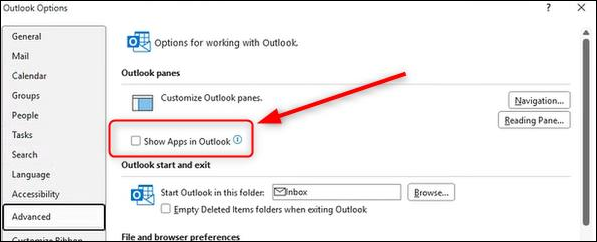
The Show Apps in Outlook setting can also affect whether Copilot appears in classic Outlook. If this setting is disabled, Copilot may not appear in the Outlook app bar. This setting is separate from the issue described above.
To rule out this setting as the cause, verify that Show Apps in Outlook is enabled:
Select the File tab, then Options.
Select Advanced, then under Outlook panes, check the box for Show Apps in Outlook.
Additional Resources
Create a profile in classic Outlook for Windows
Frequently asked questions about Copilot in Outlook
More Resources
 Ask the experts
Connect with experts, discuss the latest Outlook news and best practices, and read our blog.
 Get help in the community
Ask a question and find solutions from Support Agents, MVPs, Engineers, and Outlook users.
 Suggest a new feature
We love reading your suggestions and feedback! Share your thoughts. We're listening.
See Also
Fixes or workarounds for recent issues in classic Outlook for Windows