
If you are new to touch devices, learning a few gestures will help you take maximum advantage of the touch capabilities.
Moving around in a presentation
| To… | Do this… | Gestures |
|---|---|---|
| Change slides | Tap the slides in the navigation pane. |

|
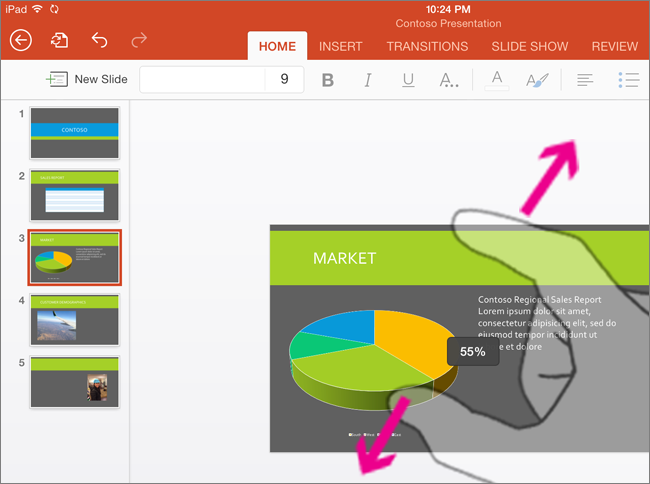
| Zoom in | Stretch two fingers apart. |
|
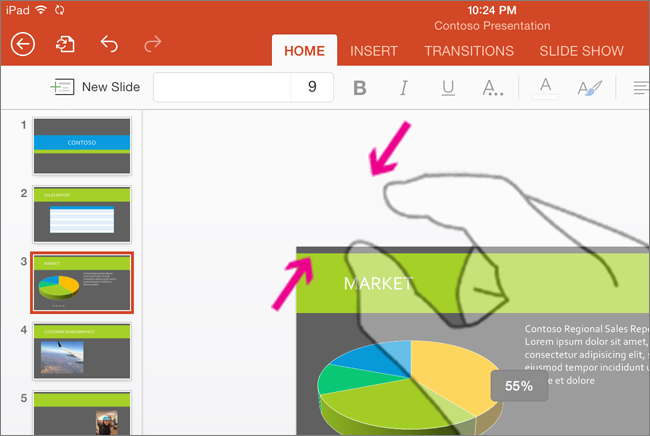
| Zoom out | Pinch two fingers together. |
|
Making a selection
| To… | Do this… | Gestures |
|---|---|---|
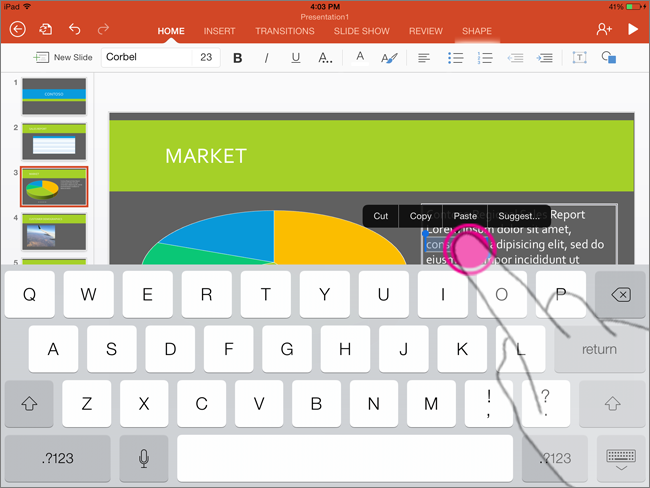
| Activate the onscreen keyboard | Double-tap on the text box. |
|
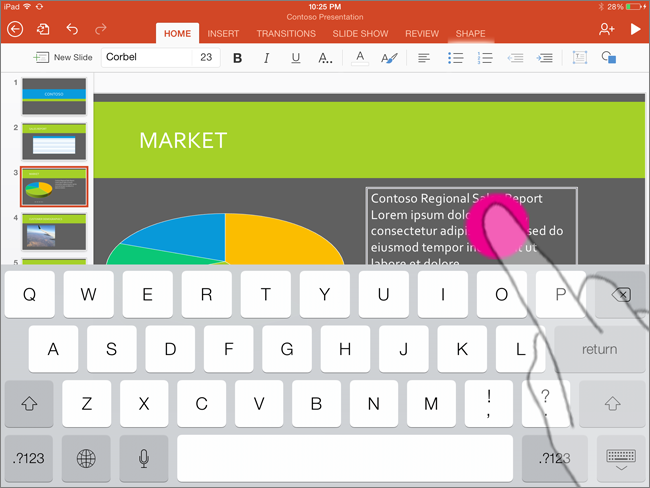
| Place a cursor | With the onscreen keyboard activated, tap anywhere in the text box to position the cursor. |
|
| Hide the onscreen keyboard | Tap the Keyboard key. |
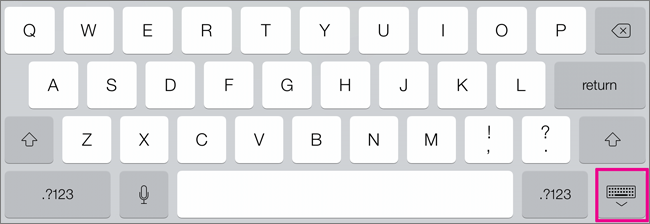
|
| Select and edit a word | Double-tap the word. This also activates the Edit menu. |
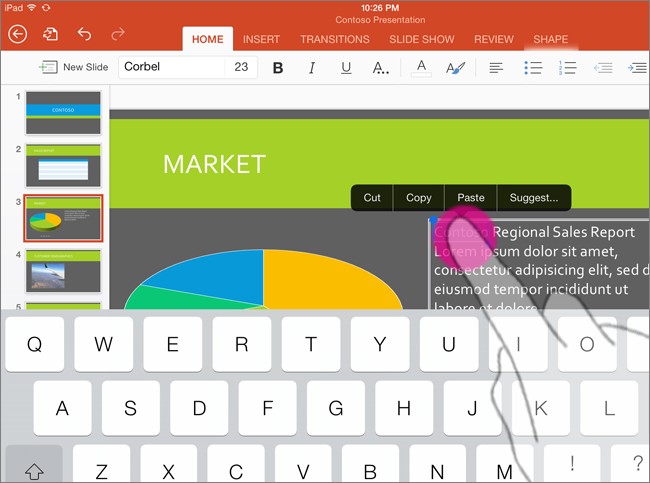
|
| Select a paragraph | Triple-tap within the paragraph. |
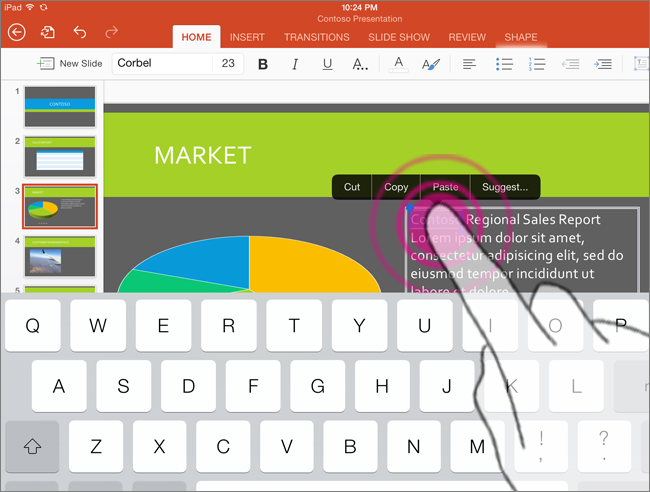
|
| Select several words, sentences, or paragraphs | Double-tap the first word and drag the selection handle right to the last word you want to select. |
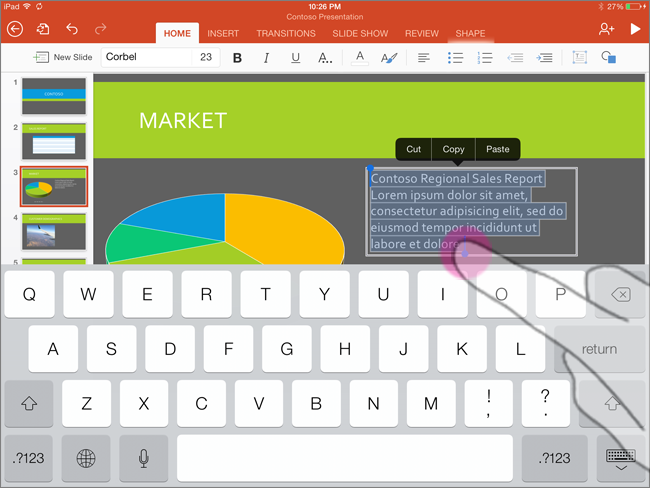
|
| Clear text selection | Tap anywhere on the screen. |
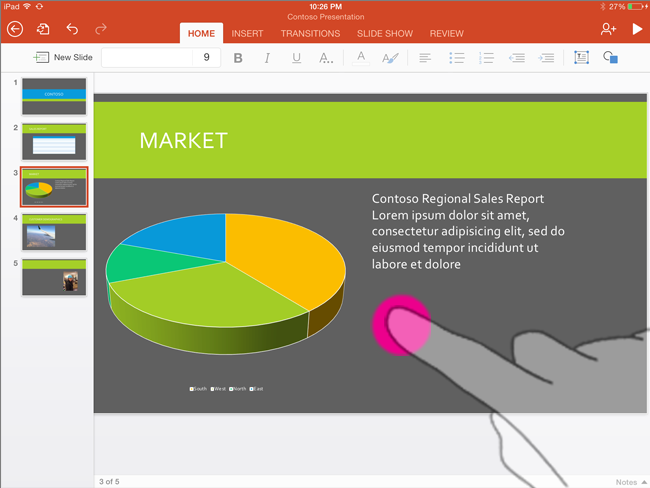
|
| Select table | Tap anywhere on the table. |
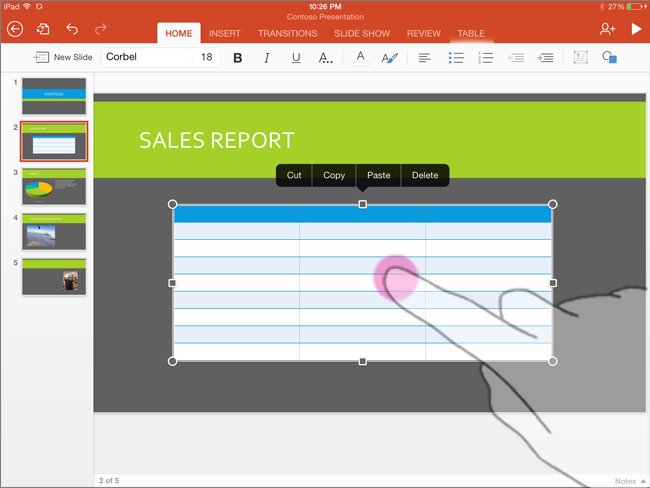
|
Working with shapes and objects
| To… | Do this… | Gestures |
|---|---|---|
| Move | Tap the object, then hold and drag to the desired location. | 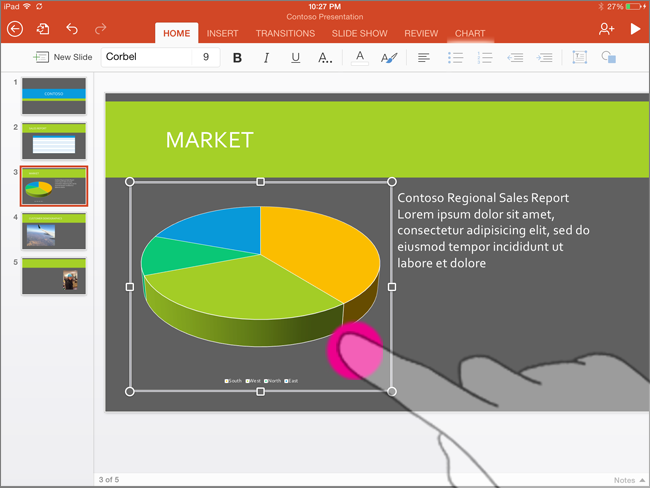
|
| Resize | Tap the object, then hold and drag any of the resize handles. |
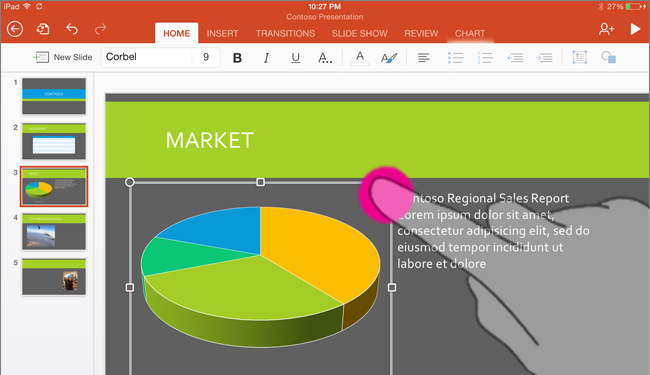
|
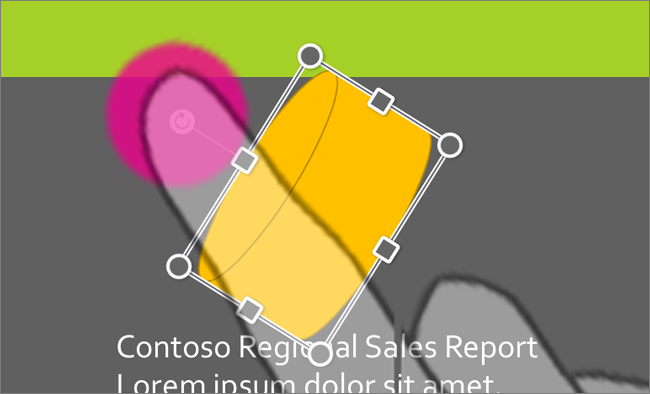
| Rotate | Tap the object, then hold and drag the rotation handle. |
|