

If you work with VLOOKUP, you might encounter the #VALUE! error. This article lists common problems that cause this error and possible solutions.
Problem: The lookup_value argument is more than 255 characters
Solution: Shorten the value, or use a combination of INDEX and MATCH functions as a workaround.
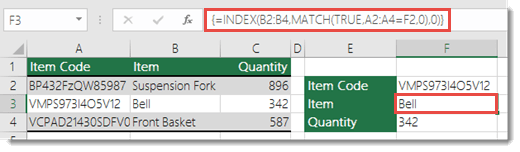
This is an array formula. So either press ENTER (only if you have Microsoft 365) or CTRL+SHIFT+ENTER.
Note
If you have a current version of Microsoft 365, enter the formula in the output cell, and then press ENTER to confirm the formula as a dynamic array formula. Otherwise, enter the formula as a legacy array formula by first selecting the output cell, entering the formula in the output cell, and then pressing CTRL+SHIFT+ENTER to confirm it. Excel inserts curly brackets at the beginning and end of the formula for you. For more information about array formulas, see Guidelines and examples of array formulas.
Problem: The col_index_num argument contains text or is less than 0.
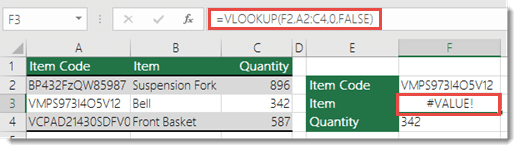
The Column Index is the number of columns to the right of the search column that you want to return if a match is found.
This error might occur because of a typo in the col_index_num argument, or you accidentally specified a number less than 1 as the index value. Another Excel function nested in the VLOOKUP function might return a number such as "0" as the col_index_num argument.
The minimum value for the col_index_num argument is 1, where 1 is the search column, 2 is the first column to the right of the search column, and so on. If you’re searching in column A, then 1 references that column, 2 is column B, 3 is column C, and so on.
Need more help?
You can always ask an expert in the Excel Tech Community or get support in Communities.
See Also
How to correct a #VALUE! error
How to avoid broken formulas in Excel
Detect formula errors in Excel