

Note
Sign in to Outlook on the web using your work or school account.
In Outlook on the web, you use the People page to create, view, and edit contacts, contact lists, and categories.
Getting to the People page
To go to the People page, sign in to Outlook on the web and select the People tab
 .
.
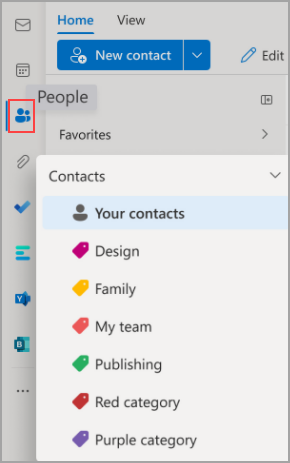
What you’ll have on the People page
- Use the Search box to search for a person or a contact list.
- The toolbar provides menus and commands for creating and modifying your contacts, contact lists, and categories depending on the context.
- You can add contacts to favorites, add contacts to a category, or share a contact with others.
- People you add as favorites appear in Favorites.
- All saved contacts appear in Contacts.
- All contact lists appear in Your contact lists.
- Categories: Organize your contacts by adding categories to them. Select a category on the side navigation to view all contacts tagged with that category.
- Your contacts are listed in the default folder called Your contacts.
- The main pane displays Your contacts, Favorites, Your contact lists, or Categories depending on which option you select in the side navigation pane.
- In the main pane, you can use the filter menu to choose how contact names are displayed and sorted.
- Add columns like Company or Office location by selecting the Manage column view ... button toward the top of the main pane.
Working with contact categories
You can organize contacts by using categories. Create your own contact categories to keep certain contacts together and find them more easily. View contacts grouped under a category by selecting the appropriate tag in the side navigation.
Your existing folders from classic Outlook are migrated to categories, and they appear as categories in the side navigation pane. Contacts that were in a particular folder or folders are stamped with categories that share the same name as the folder. Access these contacts by selecting the category in the side navigation pane.
Important
Folders in classic Outlook desktop appear as categories in Outlook on the web. People categories in new Outlook work exactly the same way as People categories in Outlook on the web. Categories that you create in Outlook on the web or in new Outlook don't appear in classic Outlook desktop as corresponding folders.
To add a new category, select a contact in the main pane and choose Add category, then type the name of your new category.
To clear all categories from a contact, select Clear Categories.
To rename a category or change its color, in the navigation pane, hover your mouse over the category name, select the More options for category name ... button, and then select Edit.
Deleting a category from the side navigation deletes the category and removes it from all contacts. It doesn't delete any of the contacts in that category.
Categories originating from folders cannot be deleted.
Auto-updating contacts (Only for enterprise users)
All your contacts that you create by using the organization's directory stay up to date automatically with any updates or changes in the organization directory.
You can add that user to your personal contacts by choosing Add to contacts. When added, you can edit that contact to include additional information, such as address, personal phone number, or notes. Any information you add will only be in your personal contacts and is not part of the organisation directory which your colleagues have access to. Only you will have the information you add.
Create, view, and edit contacts
When you add a new contact, you automatically save it in the Your contacts folder.
Add a new contact from scratch
- Sign in to Outlook on the web.
- Select the People tab
from the side navigation pane.
- On the toolbar, select New contact.
- Save a contact when you add any of the following: First Name, Last Name, Phone Number, Company, or Email.
- Select Save. To add more information, such as the address, birthday, or notes, select the contact and choose Edit.
Add a contact from someone's profile card
When you select someone's name or picture in Outlook or other Office apps and services, you get their profile card with information about them. From their profile card, you can save them to your own contacts, for example if you want to add notes or other information.
Here's how you can add a contact from an email message:
- In Mail, open an email message in the reading pane, and then select the name of the sender or recipient you want to add to your contacts.
- On the profile card that opens, select the More options
 button, then Add to contacts. The contact is added to Your contacts.
 - If you want, you can add more information to a contact, such as an address and birthday, by selecting Edit, then Save when finished.
Add people in your organization to your saved contacts
If your company has a directory set up, you can view information about your colleagues without saving them as contacts. You can search for them or select their name or picture from an email message. Their profile card shows information collected from other systems (directory). If you want to add other information, such as notes, you can save your colleagues to your own contacts. The new contact is auto-linked to the existing directory contact. Only you have the information you add.
These new contacts are auto-updating contacts.
Add a contact to favorites
To add someone to your favorites, select the contact, and then choose Add to favorites on the toolbar.
View and edit contact information
On the People page, select a contact in the main pane to view or edit information about them. You’re viewing a version of the profile card. Sections and tabs might differ.
- Quick links: Easily call, email, message, or add your contact to favorites.
- Overview: Contact information, skills availability status.
- LinkedIn: If the contact has a public LinkedIn profile with the same email that you saved for that contact, you get LinkedIn information here.
- Organization: If the contact belongs to your organization, you can also view the organization chart.
To edit a contact, select the contact you want to make changes to, then select either the More options ... button next to their name or the Edit contact button at the bottom of their profile card.
Add a photo to your contacts
On the People page, select a contact.
Select Edit contact, and then select the camera button.

Select Upload a new photo, choose the file you want to use, and then choose Open to upload it.
If you want to reposition the photo, select the circle and drag the pointer. To zoom in or out, use the slider below the photo.
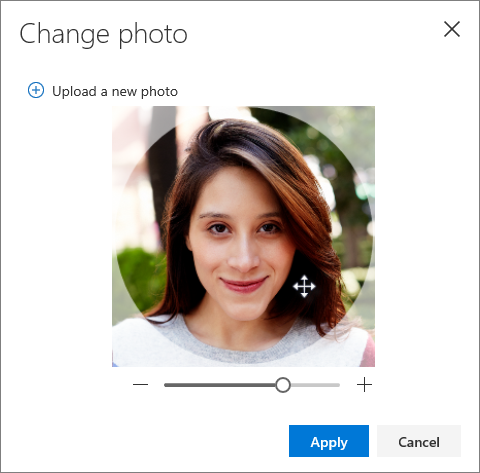
Select Apply > Save.
Change how contacts are displayed and sorted
To change how contact names are displayed, select Settings and then Display contacts by > First Name, Last Name, Company, or Recently Added.
To sort the contacts, use the sort menu at the top of the list. For example, select Sort by > Last name.
Delete a contact
- Select one or more contacts, and then select Delete.
- Select Delete to confirm.
Create, view, and edit contact lists
A contact list is a collection of email addresses, and is useful for sending email to a group of people. Contact lists are sometimes referred to as distribution lists.
For example, create a contact list named My Book Club and add all the members of your book club to it. When you want to send an email message to everyone in the club, just enter "My Book Club" in the To line of the email.
Create a contact list
Note
By default, contact lists are listed under Your contact lists.
- On the People page, on the toolbar, select the dropdown chevron ˅ button next to New contact, and select New contact list.
- Enter a name for the list, and then add names or email addresses. You can also add a Description.
- Select Create.
Add more people to a contact list
- On the People page, select Your contact lists in the navigation pane, or search for the contact list name.
- Select the contact list, and then select Edit.
- Enter names or email addresses.
- Select Save.
Remove people from a contact list
- On the People page, select Your contact lists in the navigation pane, or search for the contact list name.
- Select the contact list, and then Edit.
- Select the x for the name or email address you want to remove.
- Select Save.
Note
Features and information in this guide apply to Outlook on the web as available through Microsoft 365.