

Step 1: Export Gmail contacts
From your Gmail account, choose Gmail >Contacts, then open Contacts in a new tab.
Select Export.
Choose the contact group you want to export.
Choose the export format CSV for Outlook only.
Choose Export.
Note
Google does not export the photos of your contacts.
Step 2: Import Gmail contacts into classic Outlook
- Choose File > Open & Export > Import/Export.
- Choose Import from another program or file > Next.
- Choose Comma Separated Values > Next.
- In the Import a File box, browse to choose the .csv file you saved your Gmail contacts to.
- Choose how you want Outlook to handle duplicate contacts > Next .
- In the Select a destination folder box, scroll to the top if needed and select the Contacts folder > Next.
- Choose Finish. Outlook imports your contacts to Outlook.
Step 3: View your contacts in Outlook
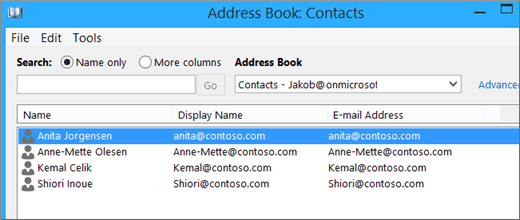
In Outlook, select Address Book, choose the name of your mailbox, and choose Contacts.
You'll see your list of contacts in the Address Book.
Fixing issues with importing Gmail contacts
You get an error message: If you try to import more than 2000 contacts at a time, you'll see an error message. Use a program such as Excel to open the CSV file, separate your list of contacts into smaller .csv files, and then import each newly created CSV file.
No contacts appear in Outlook: If you complete the import process but no contacts appear in Outlook, do the following:
Locate the csv file you exported from Google. The default file name is contacts.csv.
Use Excel to open the CSV file you exported from Google.
Check whether there is any information in the CSV file. If there isn't any information in the CSV file, the export from Google didn't work. In that case:
- Delete the contacts.csv file.
- Export your contacts from Google again. Be sure to choose to export All contacts, or the right group of contacts.
- After you export your contacts, use Excel to open the CSV file and check that there's data. When you close the file, Excel will prompt you a few times with "are you sure you want to save it in CSV format?" Always choose Yes. If you choose No, the file will get messed up and you'll need to start over with a new contacts.csv file.
- Repeat the steps to import your contacts.csv file to Outlook.
Contacts are missing info: After you import your contacts, if you open Outlook and see that not all the info was imported, open the CSV file with Excel to see if the information was there.
- You can edit the CSV file using Excel to add names and other missing information.
- Outlook requires the column headings in the first row so don’t replace them with something else.
- When you save the CSV file, Excel will prompt you a few times with "are you sure you want to save it in CSV format?" Always choose Yes. If you choose No, the file will get messed up and you'll need to start over again by exporting the list from Gmail.
- Repeat the steps to import your contacts.csv file to Outlook. In step 5, when prompted out to handle duplicates, be sure to choose Replace duplicates with items imported.